5 Essential Things to Do With Your New MacBook Neo
Here are the first 5 things I did after I bought my new MacBook Neo.

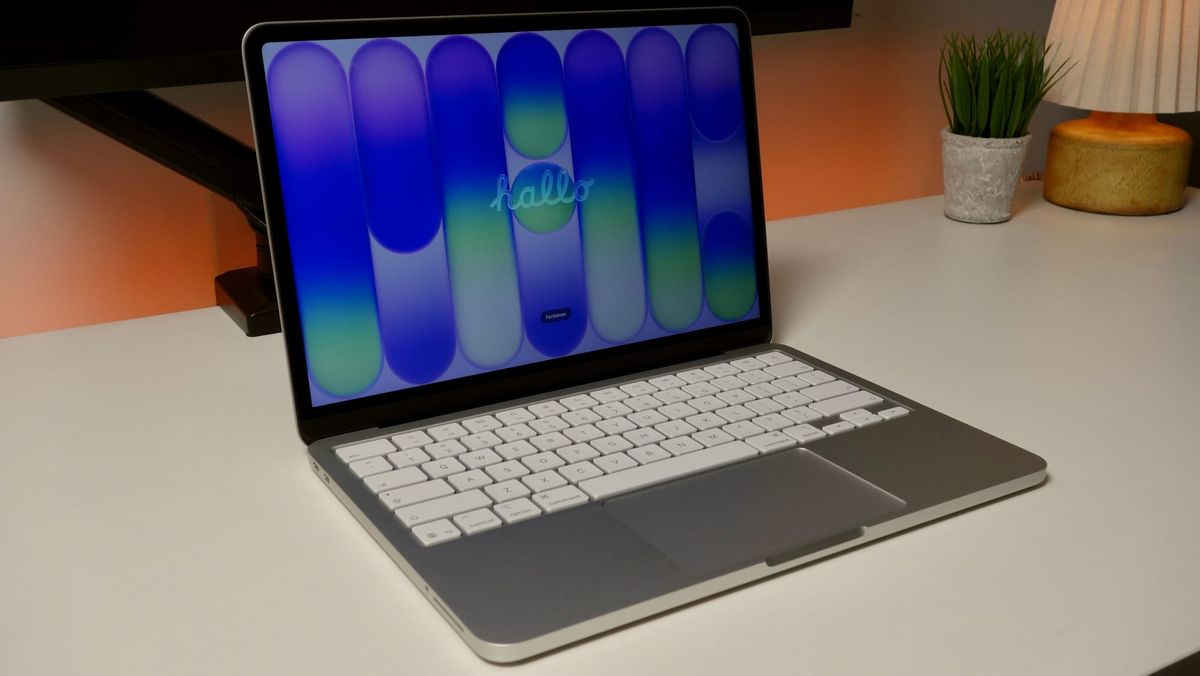
✨ Congratulations! ✨ You're the proud owner of a new MacBook Neo.
I wrote this in case you've opened the box, turned it on, and started wondering what to actually do with it.
Here are the first 5 things I did when I bought my Neo.
Enjoy The Process
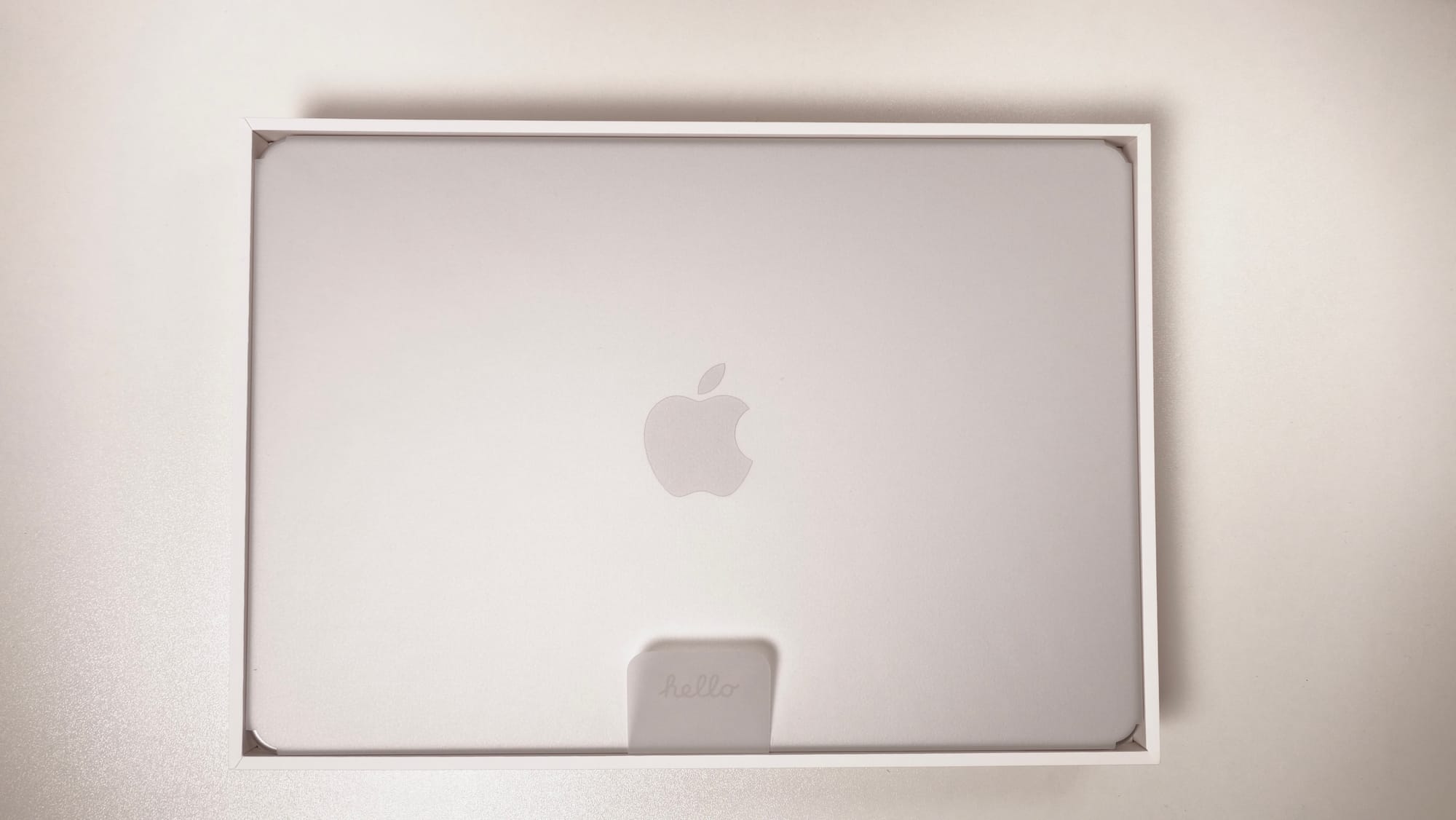
Apple uses some small fraction of every dollar we excitedly hand them to pay very talented people to design the packaging & unboxing experience of their products.
A group of people have actually sat together in a room and decided exactly how tight to make the top half of a pristine Neo box so that it slides up and reveals the beautiful new laptop below. Slowly, but not too slowly.
If you're like me and want bang for every last buck you just Apple Paid your friendly neighborhood Apple Store, take your time and enjoy opening your new Neo. It's packaged beautifully - we're allowed to be excited about opening the box, peeling off the paper wrapper, and slowly lifting the lid.
Improve Your Battery
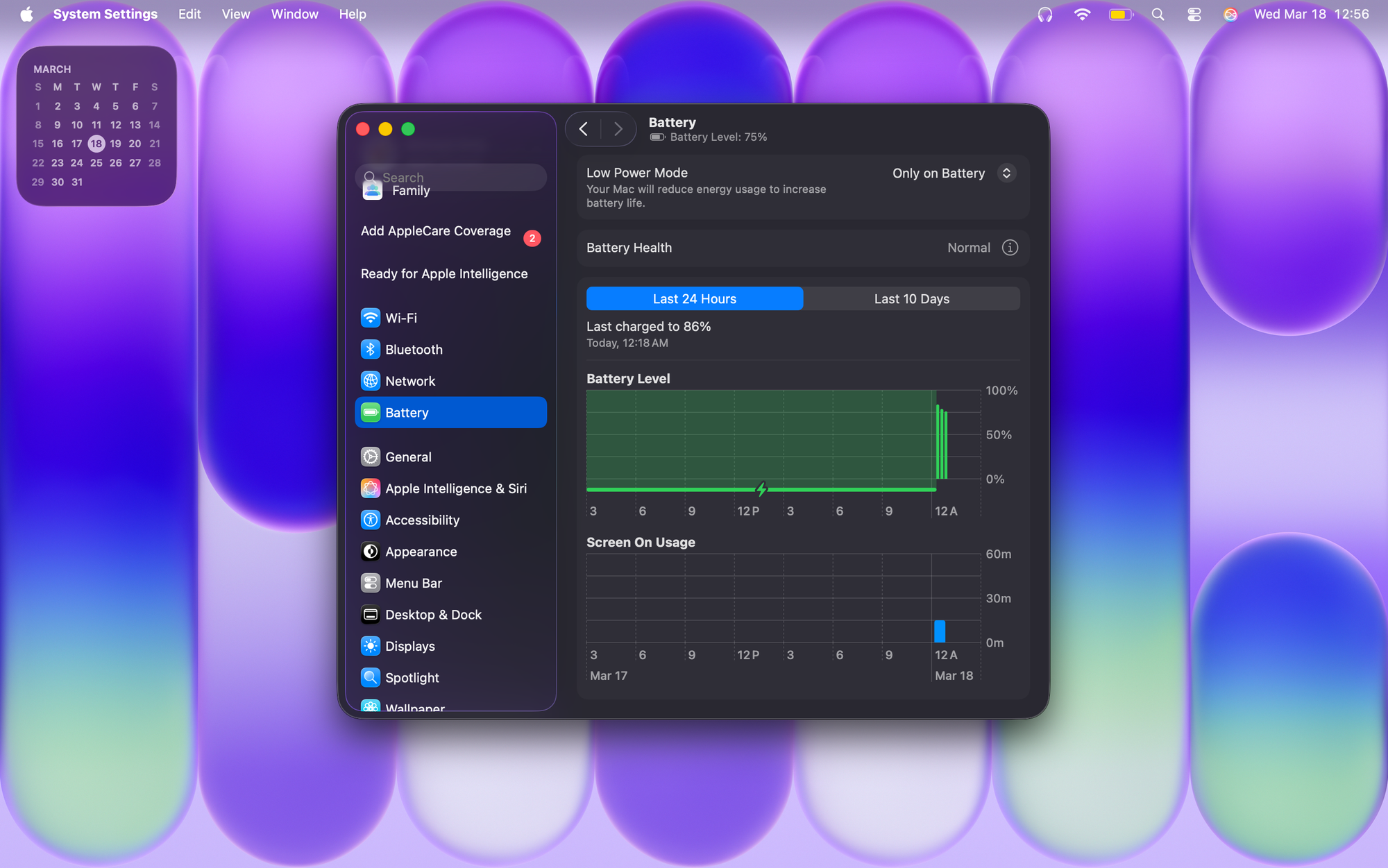
One of the first things I do whenever I get a new MacBook is to change the battery & charging settings.
🔋 Low Power Mode
Low Power Mode decreases your Neo's energy usage by reducing the CPU speed, making your display less bright, and running fewer tasks in the background.
If you're planning on running intensive software like games, photo editors, etc., it's good to keep Low Power Mode off. I like to toggle this setting to "Only on Battery", then turn it off from the battery icon in the menu bar when I need to.
This is a great setting to turn on if you're going to be away from a charger for a while or need to stretch your battery life.
⚡️ Optimize Battery Charging
In Battery Settings, click the ℹ︎ icon next to "Battery Health" and turn on Optimize Battery Charging.
This prevents your Neo from charging past 80% at certain times depending on your charging habits.
I like to keep this on, then turn it off when I know I need my laptop to charge to 100. It's a nice way to preserve your battery health and extend its life.
Customize Your Dock
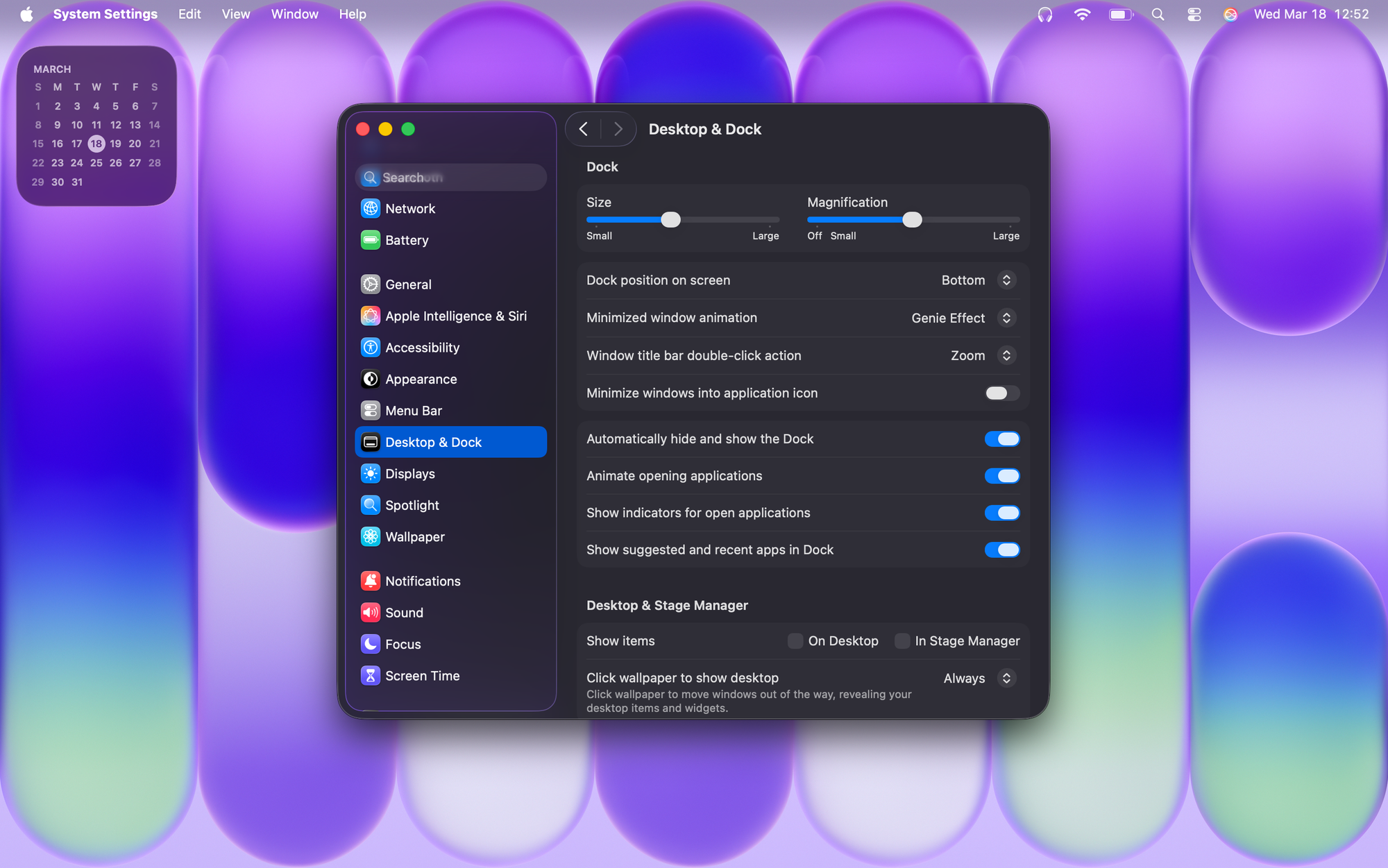
The dock is one of the nicest, best looking features in MacOS in my opinion. There are a few key changes you can make to make it even better.
🔍 Size & Magnification
This is purely personal preference, but I like to make my dock icons a little bit bigger than default, and make them magnify when I hover over them.
👻 Automatically hide and show the Dock
With bigger dock icons, I like to turn this setting on so the dock only appears when I move my cursor to the bottom of the screen.
This helps preserve precious screen real estate and looks much cleaner.
Trackpad Tweaks
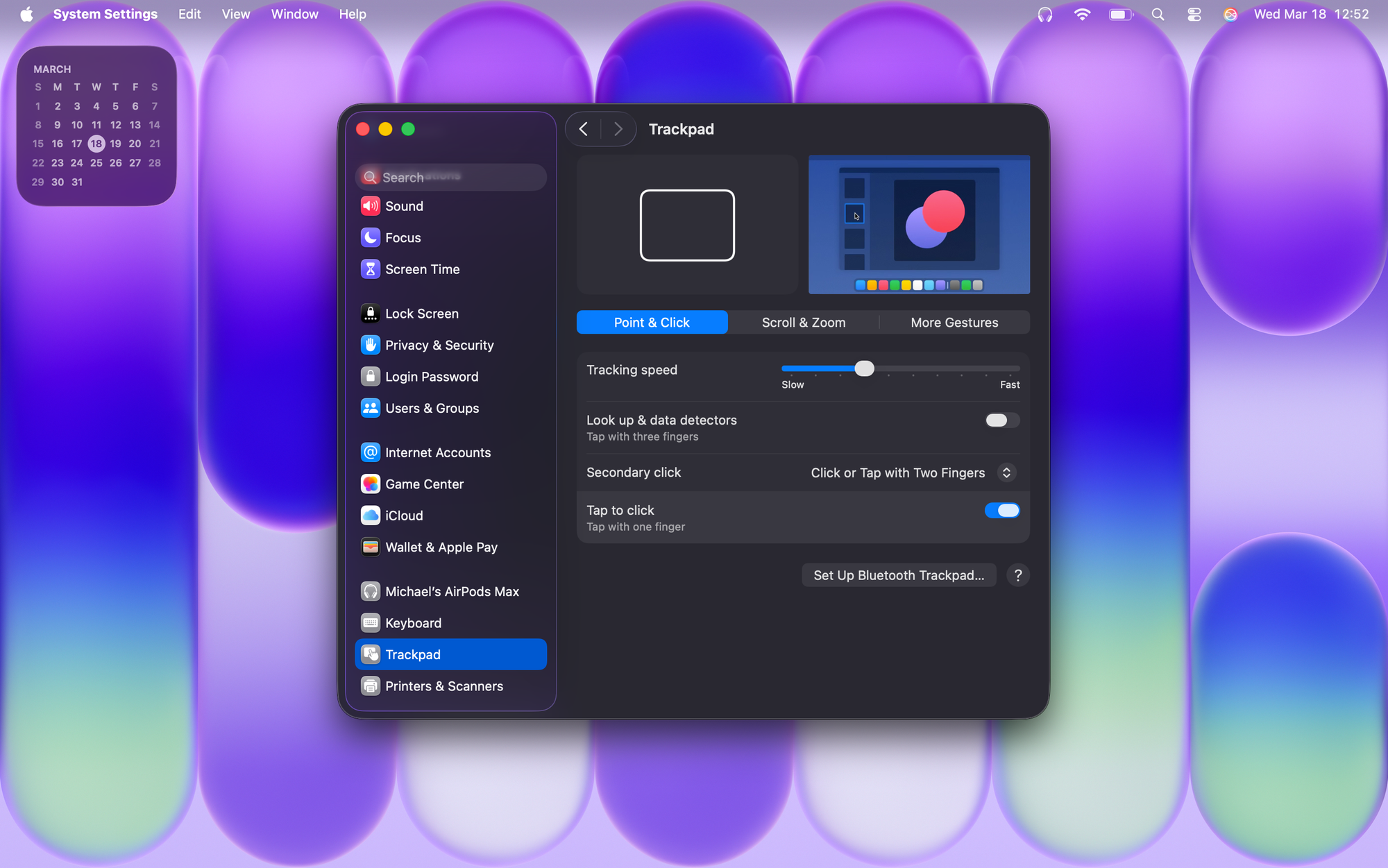
If you've never used a Mac trackpad before, you're going to love it. It works seamlessly with MacOS for quickly switching between things and feels much better than most Windows trackpads I've tried.
🐭 Point & Click
Tracking speed is complete personal preference, but for comfort and productivity it's worth increasing the speed if it feels comfortable.
Secondary click can be weird to get used to if you're coming from a Windows laptop, but I've come to like the "Click or Tap with Two Fingers" setting a lot. With this turned on, you can "right click" from anywhere on the trackpad by pressing two fingers down at once, instead of clicking the actual right side of the trackpad.
Tap to click means you won't have to push the trackpad down to click something; you can just lightly tap your fingers on the touch-sensitive surface.
📜 Scroll & Zoom
Try toggling natural scrolling and see how you feel about the scrolling direction when scrolling up & down. Personal preference again, but I keep it turned on.
I'd suggest keeping everything else here set to default.
Change Your Wallpaper & Appearance
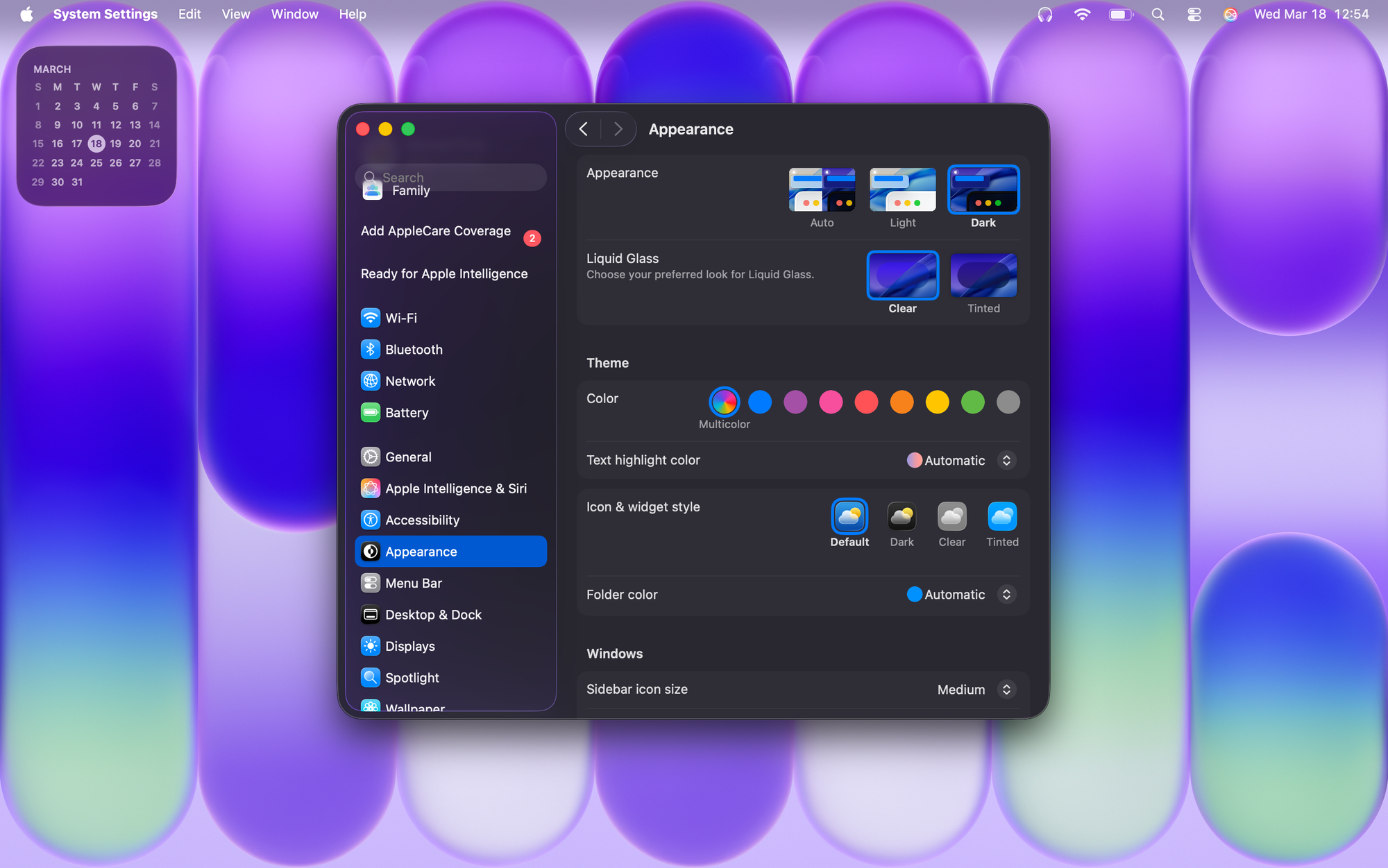
The most important thing to do with your new MacBook Neo is to personalize it.
💄 Appearance
Dark mode will be a lot easier on your eyes, but can be a little bit harder to see in certain lighting.
Some people hate Liquid Glass, and some people love it. I'm a fan but if you're not, switch this to "tinted".
🎨 Icon & Widget Style
You'll recognize these settings from iOS. With Liquid Glass turned on, "clear" icons look really clean and minimalistic, but most people like to keep these on "default".
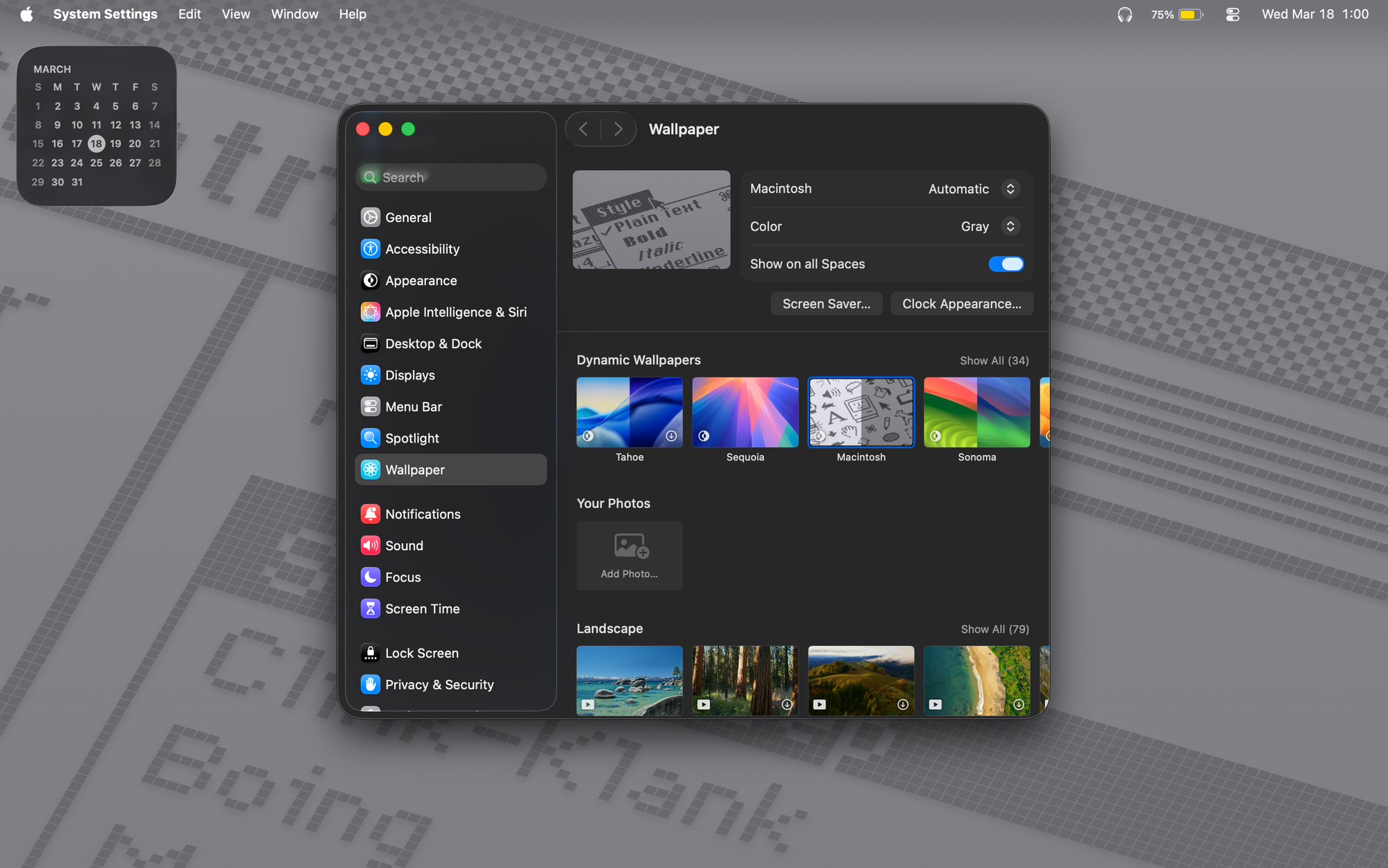
🖼️ Wallpaper
Your laptop comes with so many beautiful wallpapers, including the "Neo" one that's probably on it right now. I love the dynamic wallpapers, specifically the "Macintosh" wallpaper for a retro, Lumin-esque look.
👍🏼 If you found this helpful
Sign up for my free weekly newsletter and get:
💰 The best used & refurbished Neo deals that I've scoured the internet for
🚨 Access to my members-only store with 30% discounts on accessories I've tested
💻 MacBook Neos for sale that I've personally repaired & refurbished (eventually)
📰 Important news & highlights from my recent articles & accessory reviews
Become a member here: